Showing posts with label iphone. Show all posts

How to turn your iPhone into a Wi-Fi hotspot?

How to turn your iPhone into a Wi-Fi hotspot?
There are many good things about turning your iPhone to a wireless hotspot. For example, you are travelling somewhere and you are carrying your laptop or tablet. You have two options, you can work offline on the tablet or laptop, or browse the internet on a very small screen. It would be great if you could use your 3G or 4G connection of the iPhone and go online on your laptop or tablet, right?

The good thing is that you can easily do this with your iPhone. It is quite easy to share your cellular connection with other devices you use. This feature is popular as tethering and it is really helpful -you don’t have to look for a cafĂ© or a restaurant to use the internet or search for a free public hotspot.

Turning your iPhone to a wireless hotspot is quite easy. However, we recommend you to contact your carrier first and see if they allow this option or whether it is included in your monthly plan. This will exclude the chances of any unplanned extra fees. You also have to take care of your monthly bandwidth quota. In case you have a limited bandwidth for the month, make sure to use this option only when you really need it.

How to create an iPhone hotspot

Tethering basically transforms your iPhone to a wireless router just like the ones we all have at our homes. Of course, you won’t be able to login to the new router using its default IP (for example 192.168.1.1 and password) and tweak its settings, but it practically does the same job. Then the iPhone sends wireless signal which enables us to connect our devices to the internet. The laptop or tablet can connect to the iPhone either by USB, or Bluetooth or wireless. It is quite good to know that your beloved iPhone can do this. So, if you want to turn your iPhone to a wireless hotspot follow these steps:
  1. Tap the Settings icon
  2. Then tap on Cellular and turn on Cellular Data. Make sure to set it to 3G or 4G in the Cellular Data Options.
  3. Go back and tap Personal Hotspot and turn it ON..
  4. Tap on Wi-Fi Password and enter a password you would like to use to connect your devices. At the same time this will prevent others from connecting to your wireless hotspot.
  5. On the laptop click on the Network icon and from the available networks select the one labeled as “iPhone” or similar.
  6. Click on that network name and enter the password you have set up earlier.
Now you will be able to browse the Internet on any device you connect to your personal wireless hotspot. However, don’t forget you are using the data connection from your iPhone. Maybe you won’t get so good performance as with the Internet connection you have at home, but we are sure you will be able to do all the tasks you want to do.

Don’t forget to turn OFF the hotspot when you don’t use it since it will drain your iPhone battery very quickly.

What are the dangers of creating an iPhone hotspot

There is always a possibility that someone will try to connect to your iPhone hotspot and use your bandwidth without your knowledge. If you have set up a password as we have mentioned before you shouldn’t worry about this. However, if someone guesses your password you will be notified when he or she gets connected to the wireless hotspot. If this happens you will be notified so you can react in time.

Another thing you have to take good care about is the bandwidth. It is quite easy to forget paying attention to it while you are surfing. However, you can always use third-party apps to control the bandwidth. At the same time avoid downloading large files or updating your computer. This can consume large amounts of data and very soon you will hit the limit. So, always make sure to pay attention to this. Plus, when you use your iPhone as a hotspot you will notice the battery gets drained faster than usual.
Continue Reading

Designing for iPhone X: Tips and Tricks

Designing for iPhone X: Tips and Tricks

iPhone X is already here redesigning the way the content is displayed and creating a brand-new experience. It has an edge to edge Super Retina Display with a resolution of 1125×2436 px. iPhone X features a special cut-out at the top of the screen. Thus designing apps for this futuristic machine brings new challenges as well as opportunities. Let’s learn how to design an app or game to feel and look great on iPhone X.

Screen Sizes

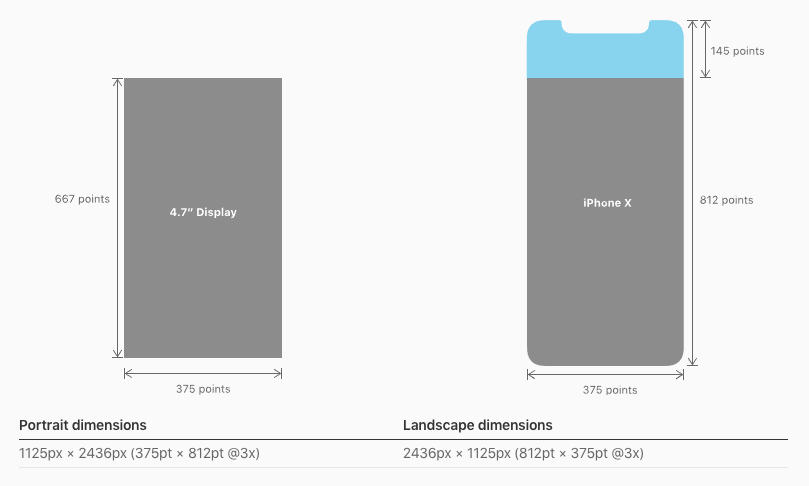
iPhone X Screen Sizes
Source: Apple
Though the screen width remains the same for iPhone X, and it's 145 pt taller than the iPhone 6, 7, and 8. Such screen dimensions result in 20% more vertical space. When working out the app design for iPhone X, try not to make the UI too complex taking advantage of all new features (cut-out, new home indicator, round edges).

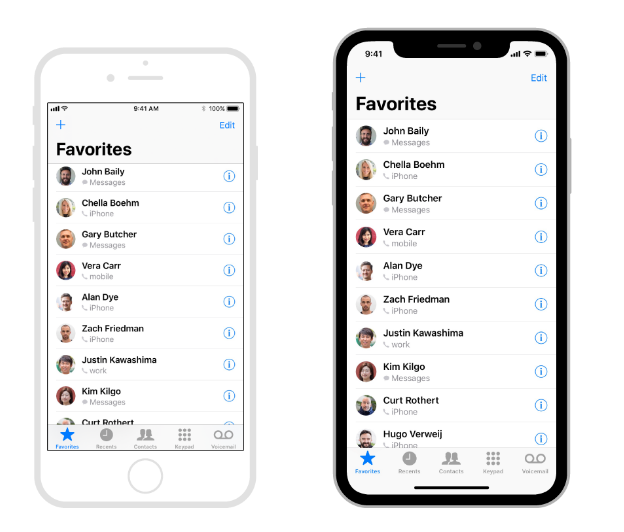
The good news is if you have a native app for iOS, you don’t have to make any changes - the app will be automatically adopted for the new iPhone X. All navigation bars, collection views, tables, and tab bars will be automatically positioned. When designing, you must ensure that the layouts fit the screen perfectly. If your app has a custom layout, you may need to update it for the new iPhone X. With the Auto Layout, everything will be easy.


Designing for iPhone X: Custom Layout
Source: Apple
Specific challenges may occur with full-screen images. If you use them, consider updating the app while they can be cropped and some essential elements may be hidden.

Source: Apple

Center your content

The device features new sensors and particular screen corners so make sure that your UI won’t get clipped. Speaking about the content, it’s preferable to place it in the center with symmetrical insets. Again with the Auto Layout, your content will be automatically adapted to the safe area of iPhone X. Nothing will be hidden behind round corners, home indicator or sensors.
Designing for iPhone X: Center your content
Source: Apple
Note, Apple highly recommend not to hide the cut-out and curved edges. So forget about placing black bars.

Brand-new status bar

Designing for iPhone X: Staus Bar
Source: Apple
Due to the sensors, the new bar has got 2 parts. It has become nearly 2x taller than on iPhone 6,7, and 8 (previously it was 20 pt, and now it’s 44 pt). So if your app features a fixed status bar and content just below it, consider updating the app in order not lose anything. Again, don’t forget about the safe area while designing a new app or iOS.

Moreover, the status bar should be visible all time. Since the screen is bigger and taller, it would be a good idea to unhide the bar. It is essential to point, that the new status bar doesn’t change its height when the device records voice or tacks the location.

Where to place interactive controls?

Since the physical home button was replaced by the home indicator, the place of interactive controls should be changed. There should be more space for gestures and swiping up around the home indicator. And if there are interactive controls, how will the user go back to the home screen? The users may accidentally use swiping up, and the UI of an app will be difficult to reach since every time they swipe, they will go back to the home screen.

However, you should and have to use the function bars and tab bars but try not to interfere with the home indicator.

Designing for iPhone X: interactive controls
Source: Apple

Smart home indicator

iPhone X features a redesigned home indicator. Apple decided to opt out of a physical home button. It’s a small white line on the bottom of the screen. To get back to the homescreen, you can swipe up from any app.

With the new iOS, the users get an adoptive home indicator which hides automatically when the screen is inactive and appears when you relaunch the app. This function comes in handy when listing photos or watching videos. Besides the auto-hide, the home indicator adapts to the color of your app’s background and changes it automatically.

With the new smart home indicator, there is no place for button pressing, everything is controlled by gestures. Moreover, you can use custom gestures in games as well as set own gestures to control the device.

More colors than ever before

Designing for iPhone X: Colors

iPhone X features the new Super Retina Display with the support of P3 colors. And it means that the colors are richer and more saturated when compared to the older devices.

Improved security with Face ID

Previously, iPhones were fitted with Touch ID. And iPhone X features Face ID for authentication to keep your data secure. Face ID features state-of-the-art algorithms to scan your face and unlock iPhone X. In case your app needs Apple Pay or other identifications, don’t integrate Touch ID for that, take advantage of the new technology brought up by Apple.

Video

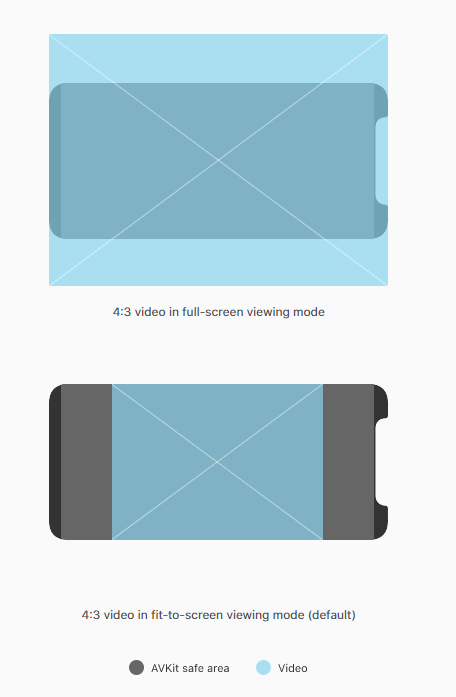
The new screen of iPhone X changes the way video is played on the device. The system video player has two viewing modes - full-screen and fit-to-screen. Make sure that all custom video players behave as expected. The video should fill the display when played. If it fails, it may result in too much cropping. Moreover, it would be great if the users will be able to switch between two viewing modes.

Apple advises keeping the original aspect ratio since the iOS won’t be able to scale the video based on the viewing mode correctly.

Designing for iPhone X: Full screen - fit to screen
Source: Apple

Where can I preview my app UI for iPhone X?

The good news is you can use Xcode 9 stimulator to preview your app. And check if something needs to be updated for iPhone X.

In a nutshell

Though the new iPhone X stands out from the crowd providing absolutely new user experience, designing apps for iPhone X is still a smooth sail. Take care of the new display capabilities and its dimensions and make most of them.


Author bio:
Helen Morrice - Technical writer and copywriter at IDAP Group. Say “hi” to us on Facebook or Twitter.
Continue Reading